Officer Apps offers multiple user roles, including the option to create Custom Roles, so you can tailor access to your organization’s needs. This article explains each standard user type and the level of access they have within the platform.
Understanding the Two Portals
To better understand user access, it is important to know that Officer Apps is divided into two main portals:
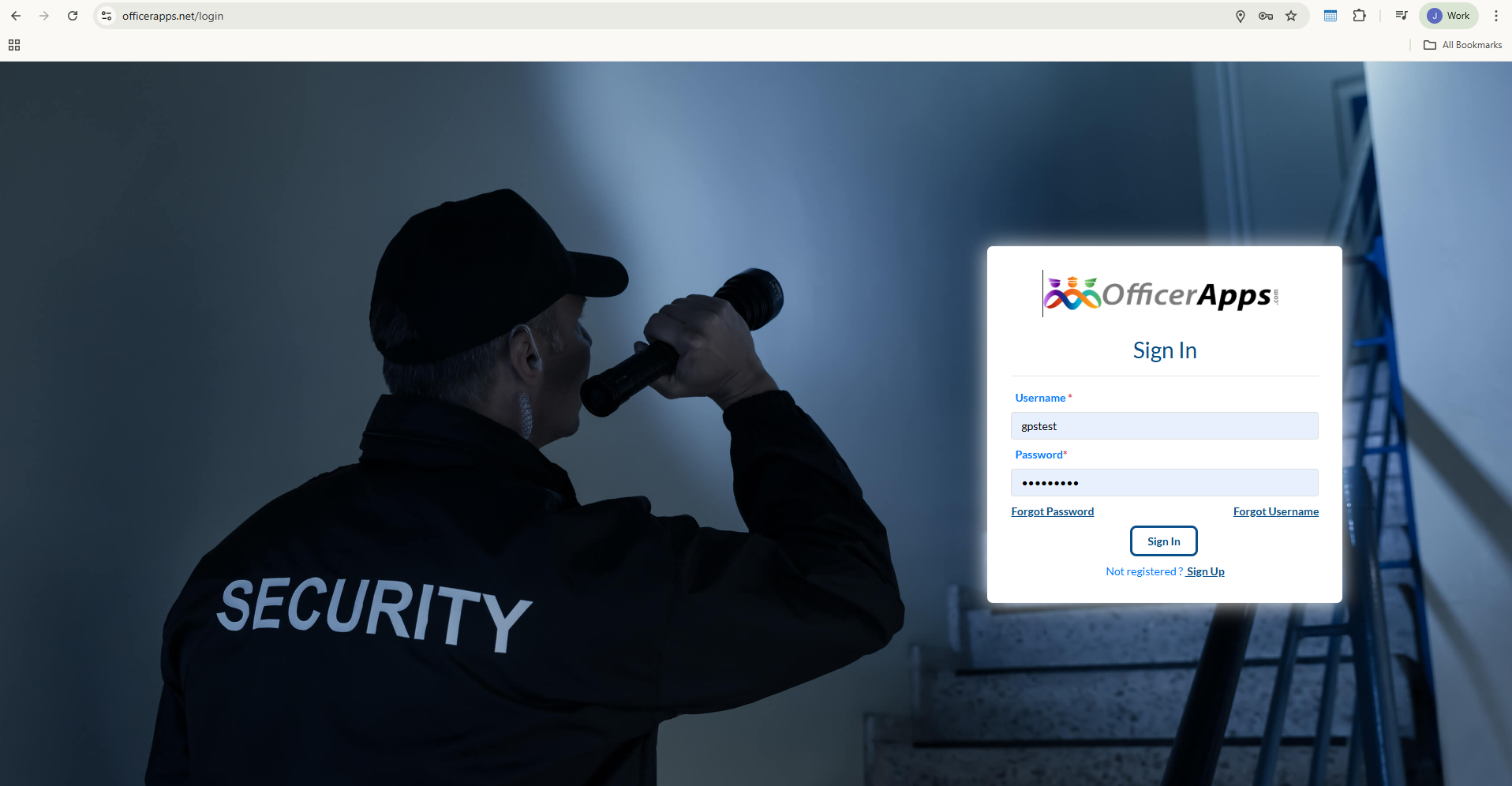
Customer Portal
The Customer Portal is the administrative side of the system. It allows users to view, create, edit, and delete all types of records, such as officers, sites, users, schedules, and reports.
Used primarily for system setup and management
Accessible only through a web browser (PC recommended)
Officer Portal
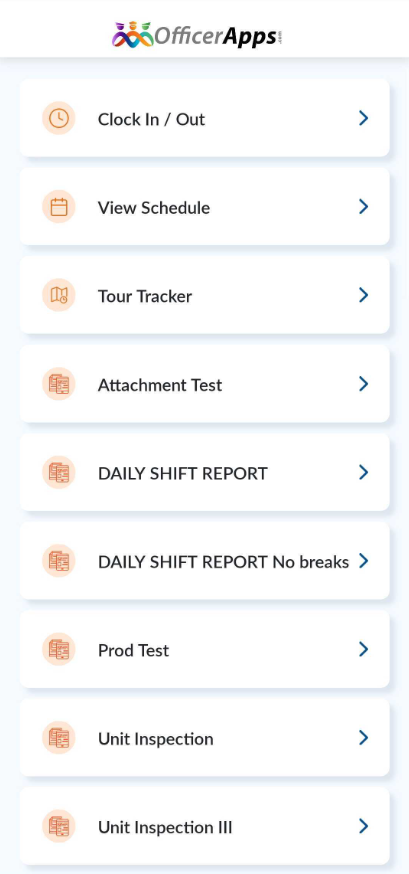
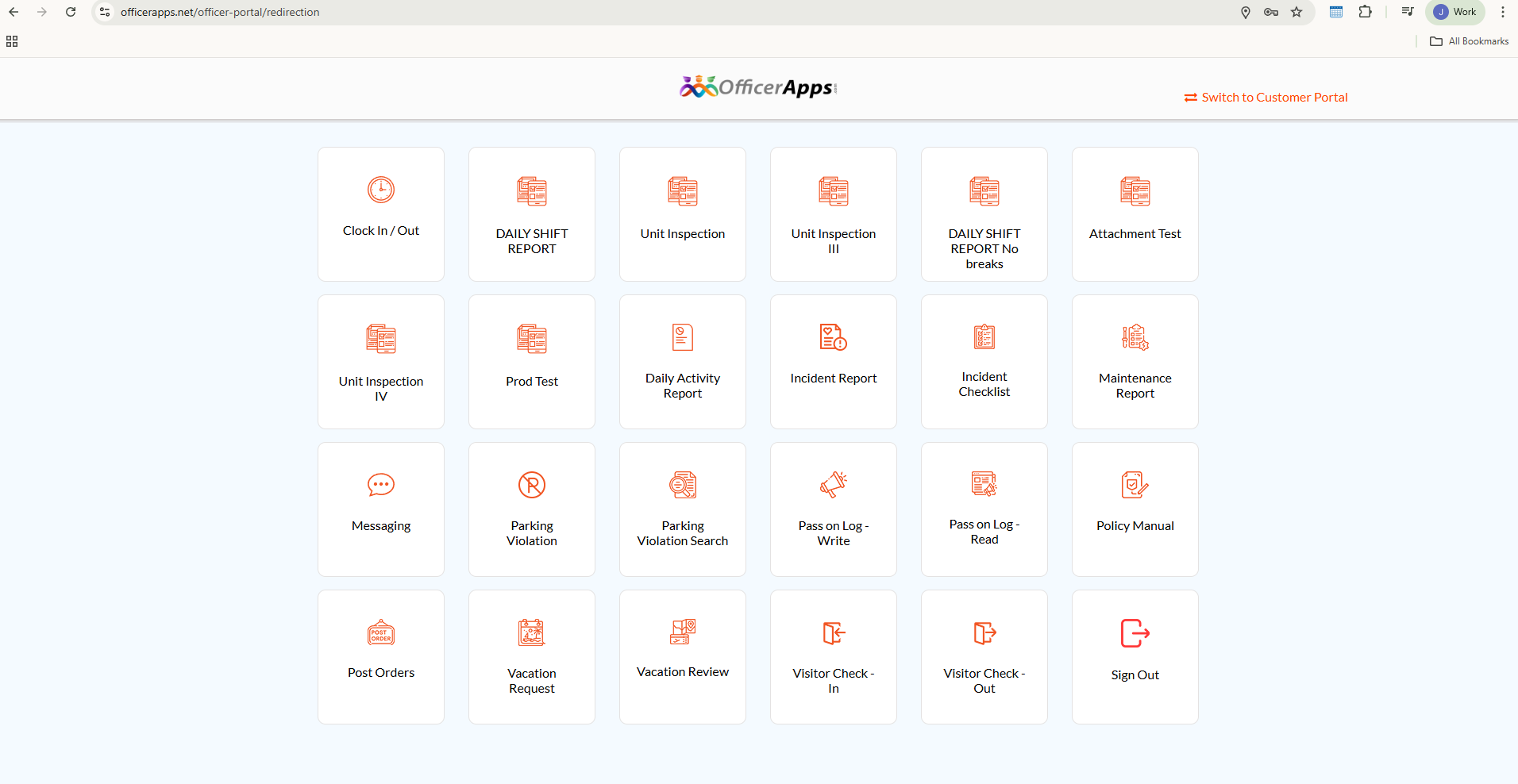
The Officer Portal is where daily operational activities take place. This is the portal most commonly used by officers in the field.
Typical actions include:
Clocking in and out
Creating reports
Performing tour tracking
Completing daily tasks
The Officer Portal can be accessed through:
The mobile app
The web version of the platform
User Types and Access Levels
Customer Admin
Customer Admin is the highest access level within an account. This role has full access to all features and data, so caution is advised when assigning it.
Access to both the Customer Portal and Officer Portal
Can view, create, edit, and delete all records
Email notifications (default):
Does not receive standard email reports
Receives Custom Reports (if configured) and SOS Alerts
Supervisor
Supervisor users can be assigned to one or multiple sites and have elevated permissions related to site operations and report management.
Access to a limited Customer Portal and the Officer Portal
Can approve, edit, or delete reports
Can modify schedules for assigned sites
Cannot add, delete, or modify officers or sites
Email notifications (default):
Daily Activity Reports
Incident Reports
Tour Tracking Reports
Tour Exception Reports
SOS Alerts
Geofence Alerts
Maintenance Requests
Officer
Officers are primarily responsible for daily field activities.
Access to the Officer Portal by default
Can clock in/out, create reports, and perform tour tracking
Optional access to the Customer Portal can be granted
If enabled, officers can view report history
If allowed at the site level, they may edit their own reports
Email notifications (default):
Open Shift notifications
Shift Reminders
Client User
Client Users are designed for customers who want visibility into reports without the ability to make changes.
View-only access
Can see reports for all sites assigned to their client
Example: If a client has five sites, the Client User can view reports for all five
Cannot edit, delete, or create any records
Access:
Customer Portal only
Email notifications:
No emails are sent by default
Site User
Site Users are similar to Client Users but with access limited to one site instead of all sites under a client.
This role is helpful when different sites under the same client are managed by different people.
View-only access to one assigned site
Access:
Customer Portal
Email notifications (default):
Daily Activity Reports
Incident Reports
Maintenance Requests
Customer Reports (if configured)
Call Center Representative
For details on Call Center Representative access and permissions, please refer to the dedicated article:
https://help.officerapps.net/support/solutions/articles/61000300594-add-call-center-reps
Custom Role
Officer Apps also allows you to create Custom Roles with permissions tailored to your operational needs.
For more information, see:
https://help.officerapps.net/support/solutions/articles/61000301410-create-manage-custom-roles
Was this article helpful?
That’s Great!
Thank you for your feedback
Sorry! We couldn't be helpful
Thank you for your feedback
Feedback sent
We appreciate your effort and will try to fix the article