When a vendor, contractor or recurring visitor arrives at your site, scan their QR code to check them in. Scan the same code again when they leave to check them out. Each visit is recorded with the time and the officer who scanned it.
Before you start: update the OfficerApps app from the App Store or Google Play. If you don't see Scan Check-In and Scan Check-Out in the menu, ask your supervisor to turn them on for your site.
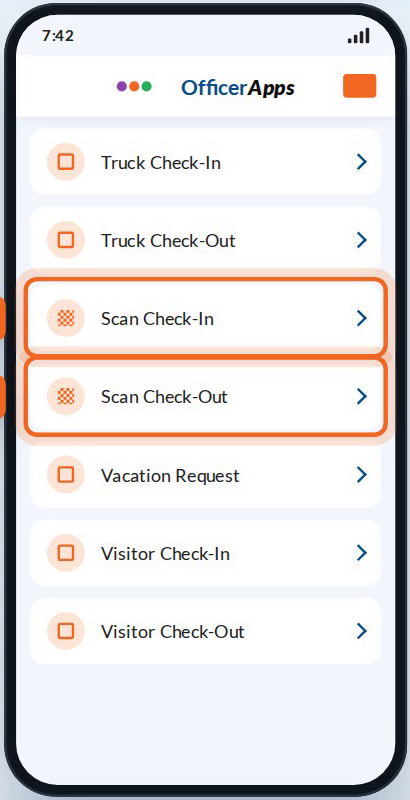
Check a visitor in
- On the home menu, tap Scan Check-In.
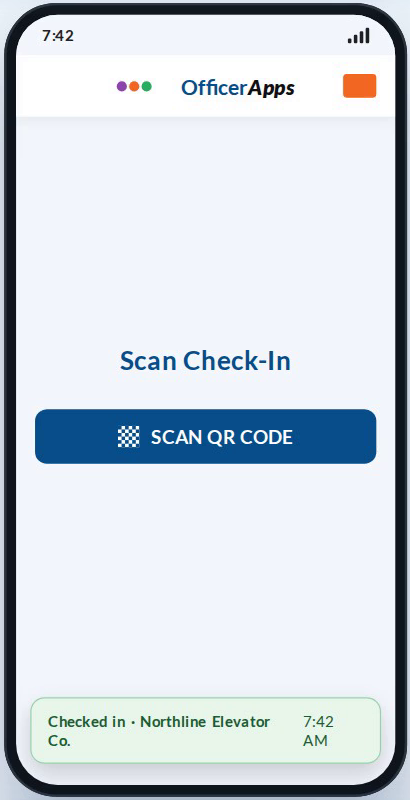
- Tap SCAN QR CODE.
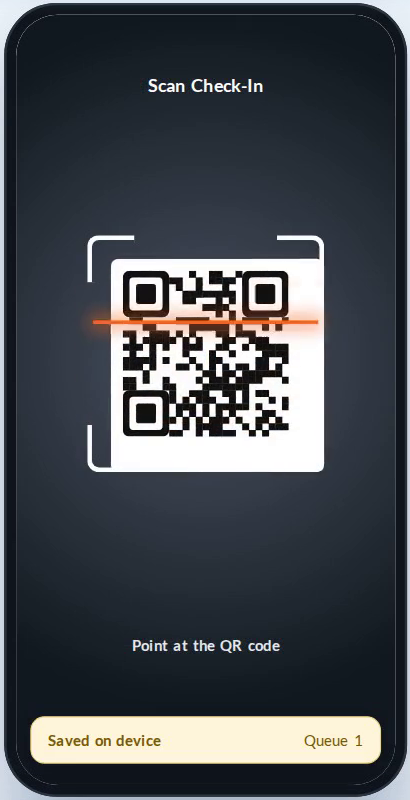
- Point the camera at the visitor's code.
The app saves the code, your name and the time, then shows a confirmation such as Checked in · Northline Elevator Co.
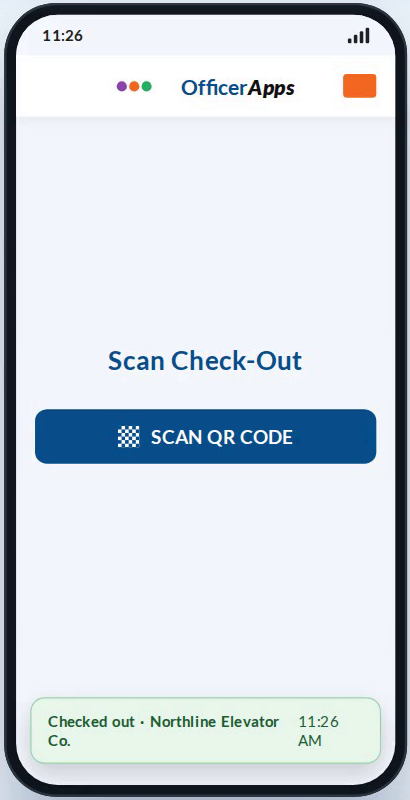
Check a visitor out
- When the visitor leaves, tap Scan Check-Out.
- Tap SCAN QR CODE and scan the same code.
Any officer can check a visitor out, not just the one who checked them in. The report shows who scanned them in and who scanned them out.
Scanning with no signal
You can scan even with no signal, such as in a basement or parking garage. The scan is saved on your phone, and the screen shows Saved on device with the number of scans waiting.
When your phone reconnects, the saved scans upload on their own. The report shows the time you scanned, not the time it uploaded.
Troubleshooting
Message or problem | Why it happens | What to do |
|---|---|---|
"This QR code has not been scanned out yet" | That code is already checked in. | Tap Scan Check-Out and scan it first, then check it in again. |
"This QR code has not been scanned in yet" | That code isn't checked in. | Tap Scan Check-In and scan it first. Ask your supervisor to check the report for the last visit. |
I can't find Scan Check-In | Scan In/Out isn't turned on for your site, or the app is out of date. | Update the app, then ask your supervisor to turn on Scan Check - In and Scan Check - Out for the site. |
A code won't scan | The code was deleted, or the label is damaged. | Ask your supervisor for a new or reprinted code. |
My scans aren't showing up | Your phone was offline when you scanned. | Open the app where you have signal so the saved scans upload. |
➤ Still need help? Contact OfficerApps Support.
Was this article helpful?
That’s Great!
Thank you for your feedback
Sorry! We couldn't be helpful
Thank you for your feedback
Feedback sent
We appreciate your effort and will try to fix the article