Supervisors can now record praise or problems about an officer during a Field Inspection. Each Evaluation Note is either a Commendation or a Corrective Action, and it's saved to the officer's profile in the web portal, where managers can review it. This feature was added on September 28, 2026.
Add an Evaluation Note (officer app)
- Start a Field Inspection.
- In Inspected Officer, pick the officer you're inspecting.
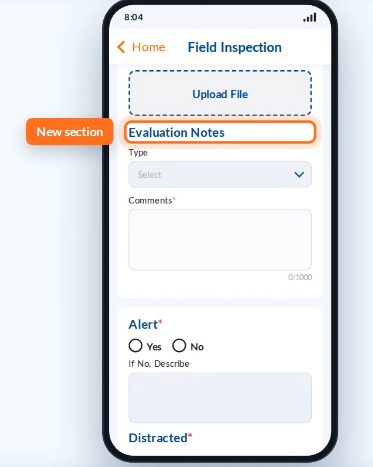
- Scroll to Evaluation Notes, below the officer photos.
- In Type, choose Commendation or Corrective Action.
- Write your comment. You can enter up to 1,000 characters, and a counter shows how many you've used.
- Finish and submit the inspection as usual.
Evaluation Notes are optional. You can submit a Field Inspection with or without one.
If the officer isn't in the list
If the officer isn't listed, choose Inspected Officer - Other. Because there's no officer profile to save it to, Evaluation Notes is grayed out.
Important: Switching to Inspected Officer - Other clears any note you've already typed. Pick the officer from the list first if you want to keep the note.
Review notes in the web portal
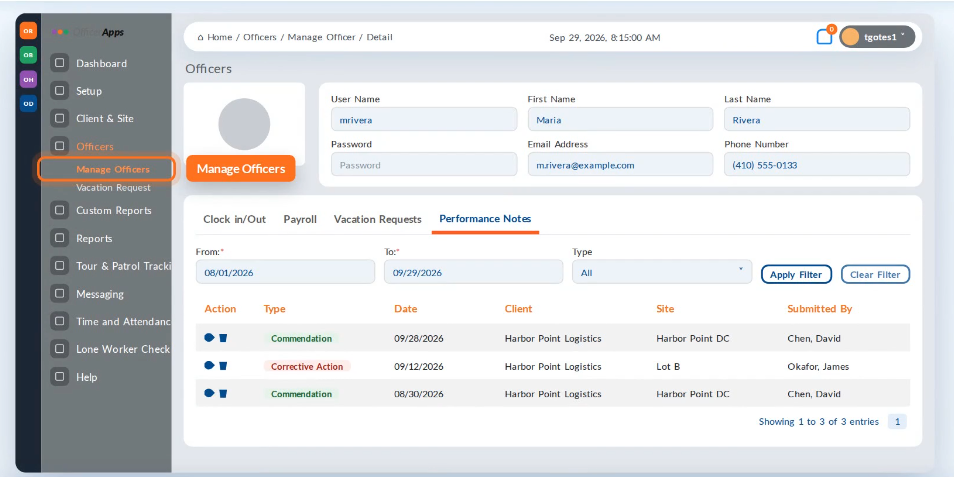
- Go to Officers > Manage Officers.
- Click the officer's username.
- Open the Performance Notes tab, next to Clock In/Out, Payroll and Vacation Requests.
- To narrow the list, set the From and To dates and a Type, then click Apply Filter. Click Clear Filter to see all notes again.
Each row shows the note's type, date, client, site and who submitted it.
View or delete a note
- View: click the eye icon to open the full note. It's read-only. Click Ok to close it.
- Delete: click the trash icon, then confirm. The note is removed from the officer's profile.
Notes can't be edited after they're submitted. To correct a note, delete it and add a new one at the next inspection.
Who can see Evaluation Notes
Only users whose role allows it can see the Performance Notes tab and the delete icon. Officers can't see notes about themselves. To give a user access, check their role and permissions.
Troubleshooting
Problem | Why it happens | What to do |
|---|---|---|
Evaluation Notes is grayed out | Inspected Officer - Other is selected. | Pick the officer from the Inspected Officer list. |
My note disappeared before I submitted | Switching to Inspected Officer - Other clears the note. | Pick the officer again and retype the note. |
I can't find the Performance Notes tab | The user's role doesn't allow it. | Check the user's role and permissions. |
I need to fix a note | Submitted notes can't be edited. | Delete the note and add a new one at the next inspection. |
I deleted a note by mistake | Deleted notes no longer show on the profile. | Contact OfficerApps Support. |
➤ Still need help? Contact OfficerApps Support.
Was this article helpful?
That’s Great!
Thank you for your feedback
Sorry! We couldn't be helpful
Thank you for your feedback
Feedback sent
We appreciate your effort and will try to fix the article