Scan In/Out tracks vendors, contractors and recurring visitors at a site with pre-assigned QR codes. You create one code per visitor, officers scan it when they arrive and again when they leave, and each visit becomes one row in the Scan In/Out Logs report. This feature was added on September 14, 2026.
Scan In/Out is separate from Visitor Check-In/Out, Truck Check-In/Out and Tour Stops. Those features work the same as before.
Create QR codes
- Go to Client & Site and edit the site.
- Open the Scan In/Out tab.
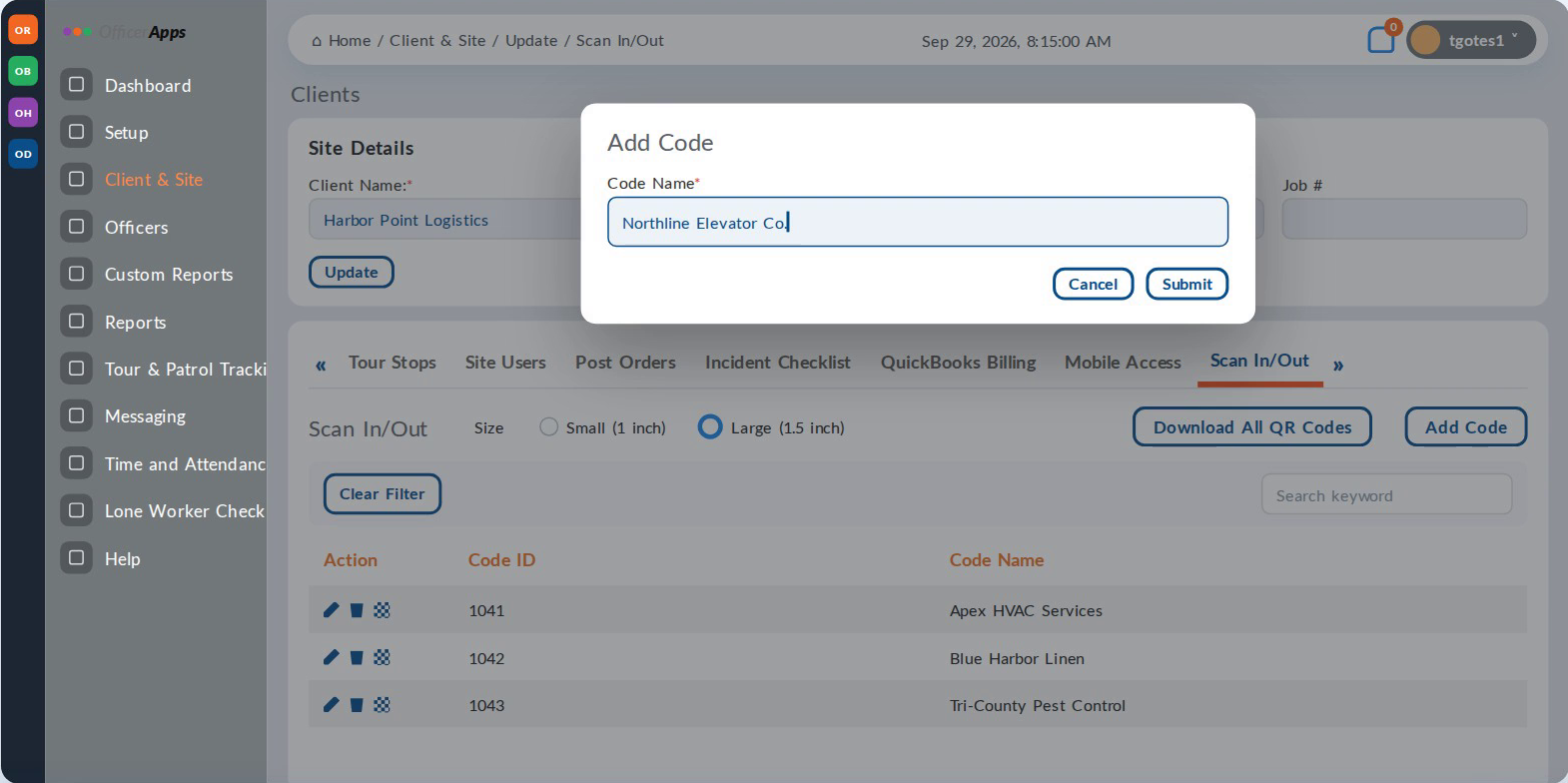
- Click Add Code.
- Enter a name officers will recognize, such as the vendor's company name, and click Submit.
Each code belongs to one site and gets its own Code ID.
Rename or delete a code
- Rename: click the pencil icon. This changes the name only. The Code ID stays the same, so past scans stay linked to the code.
- Delete: click the trash icon and confirm. The code can no longer be scanned, but its past scans stay in Scan In/Out Logs.
Print the codes
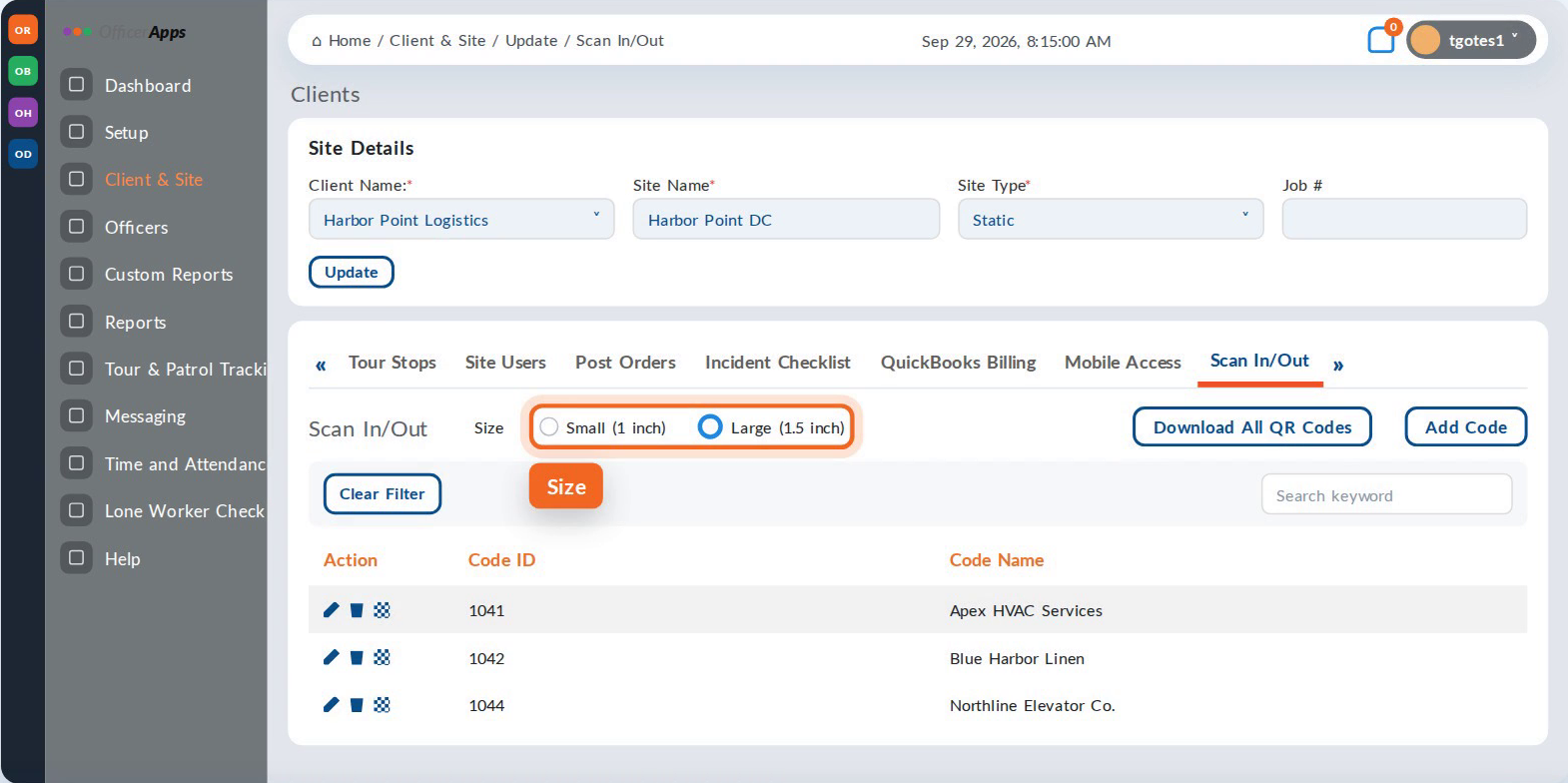
- On the Scan In/Out tab, pick a Size: Small (1 inch) or Large (1.5 inch). Large is the default.
- Click Download All QR Codes. You'll get one PDF with every code for the site.
- Print the codes and give each one to its vendor or visitor.
Turn it on for officers
Officers only see Scan In/Out when it's turned on for their site.
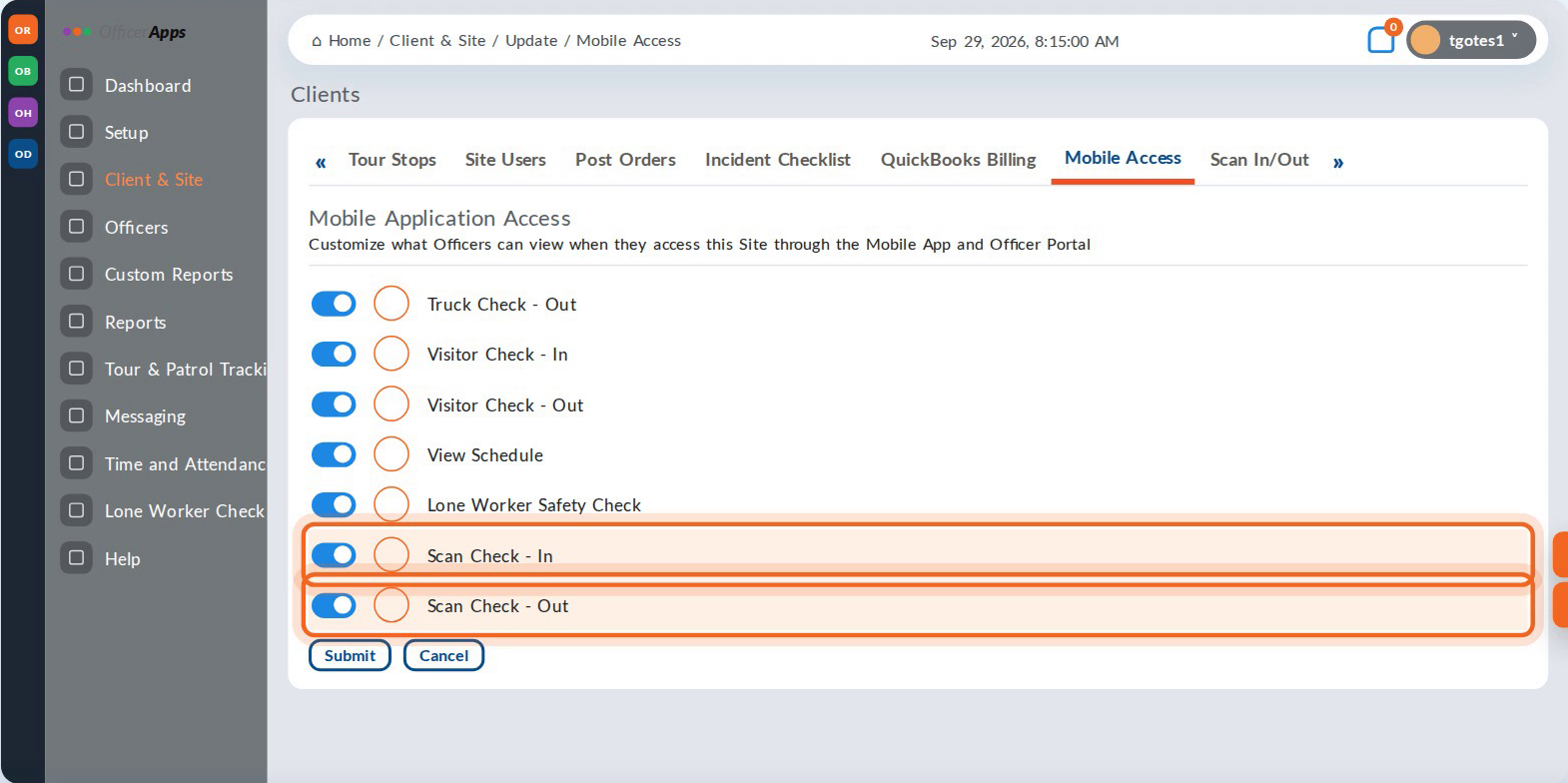
- Edit the site and open the Mobile Access tab.
- Make sure Scan Check - In and Scan Check - Out are both on. They're separate toggles, and both are on by default.
- Click Submit.
View the Scan In/Out Logs report
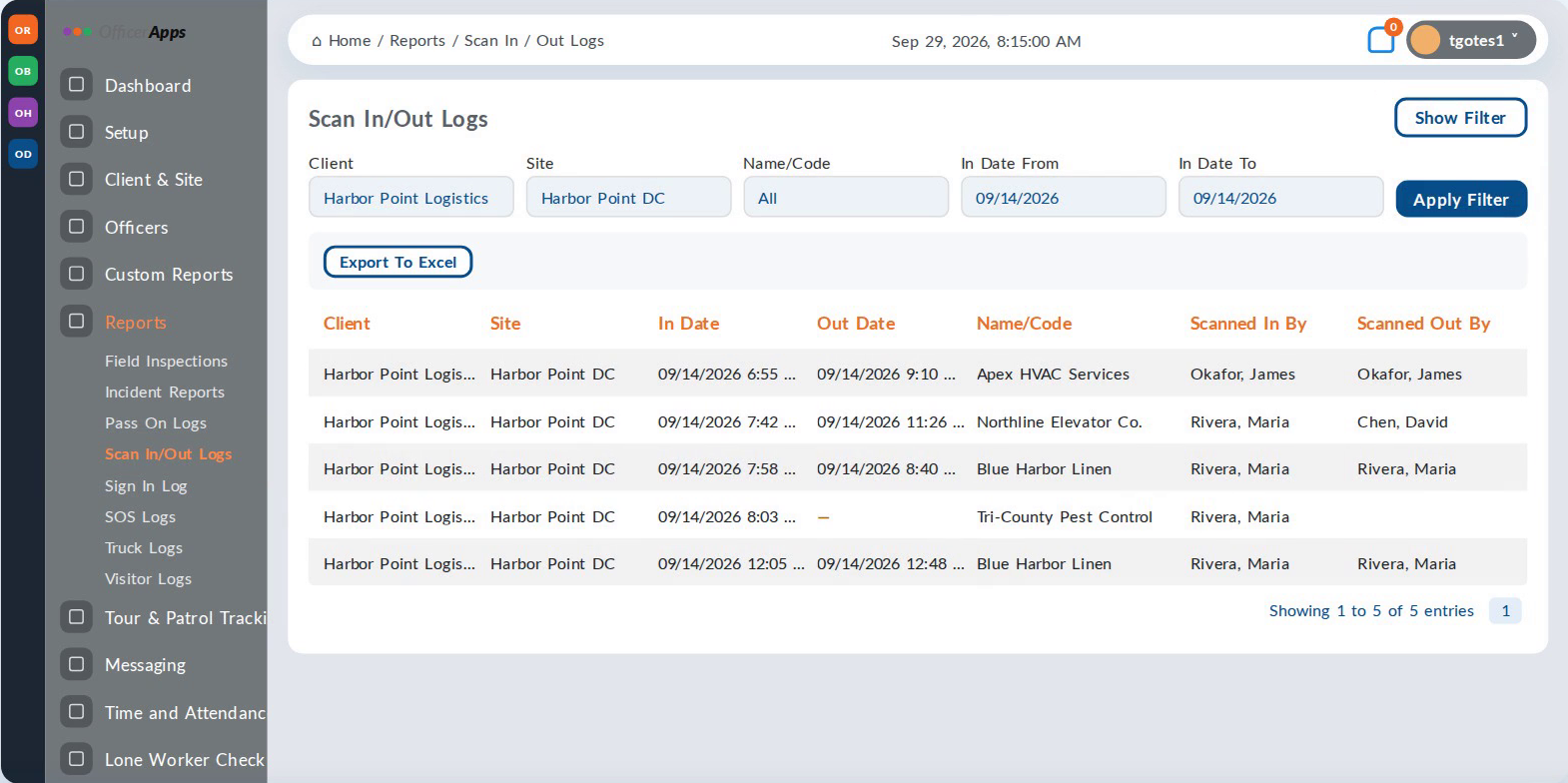
- Go to Reports > Scan In/Out Logs, just above Sign In Log.
- Click Show Filter and pick the client, site, code name and in-date range.
- Click Apply Filter.
- To download the results, click Export To Excel.
Each row shows the client, site, in date, out date, code name, and which officers scanned the code in and out.
- A blank Out Date means the code is still checked in. The visitor is still on site, or nobody scanned them out.
- Times are the time of the scan, even if the officer's phone had no signal and uploaded the scan later.
- If you used Scan In/Out in OfficerReports, your past scans were brought into OfficerApps. Search with an older date range to find them.
Troubleshooting
Problem | Why it happens | What to do |
|---|---|---|
An officer can't find Scan Check-In | The toggle is off for that site. | Turn on Scan Check - In and Scan Check - Out on the site's Mobile Access tab. |
A code won't scan | The code was deleted, or the printed label is damaged. | Add a new code or reprint it from the site's Scan In/Out tab. |
Scans are missing from the report | The phone was offline, or the filter is too narrow. | Have the officer open the app with signal so scans upload, and widen the date range. |
Where is our old history from OfficerReports? | Past scans were brought into OfficerApps. | Search Scan In/Out Logs with an older date range. |
➤Still need help? Contact OfficerApps Support.
Was this article helpful?
That’s Great!
Thank you for your feedback
Sorry! We couldn't be helpful
Thank you for your feedback
Feedback sent
We appreciate your effort and will try to fix the article