The Post Order Agent answers officers' questions in the app using your site's post order PDF. The new Q&A review section lets supervisors and customer admins see what officers asked, grade each answer, and find the gaps in your post orders. This feature was added on September 15, 2026.
How it works
- An officer asks a question in the app, typed or spoken.
- The Post Order Agent answers from the site's post order PDF and cites the pages it used.
- A supervisor reviews and grades the answer. The grades show which answers were wrong and which PDFs need more detail.
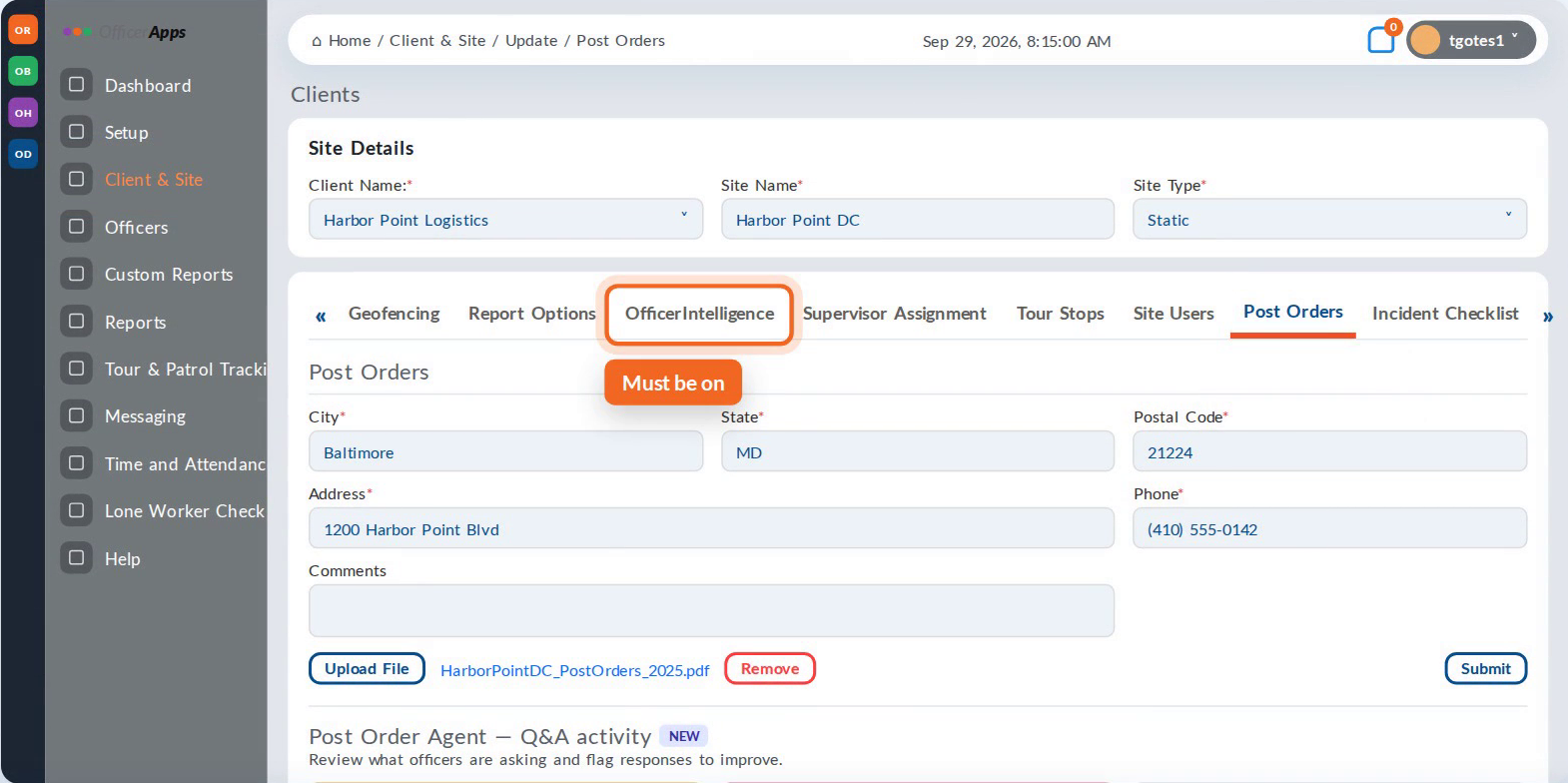
Find the Q&A review
- Go to Client & Site and edit the site.
- Open the Post Orders tab.
- Scroll past the post order form to Post Order Agent — Q&A activity.
This section only shows when OfficerIntelligence is turned on for the site, and only for supervisors and customer admins.
Read the summary
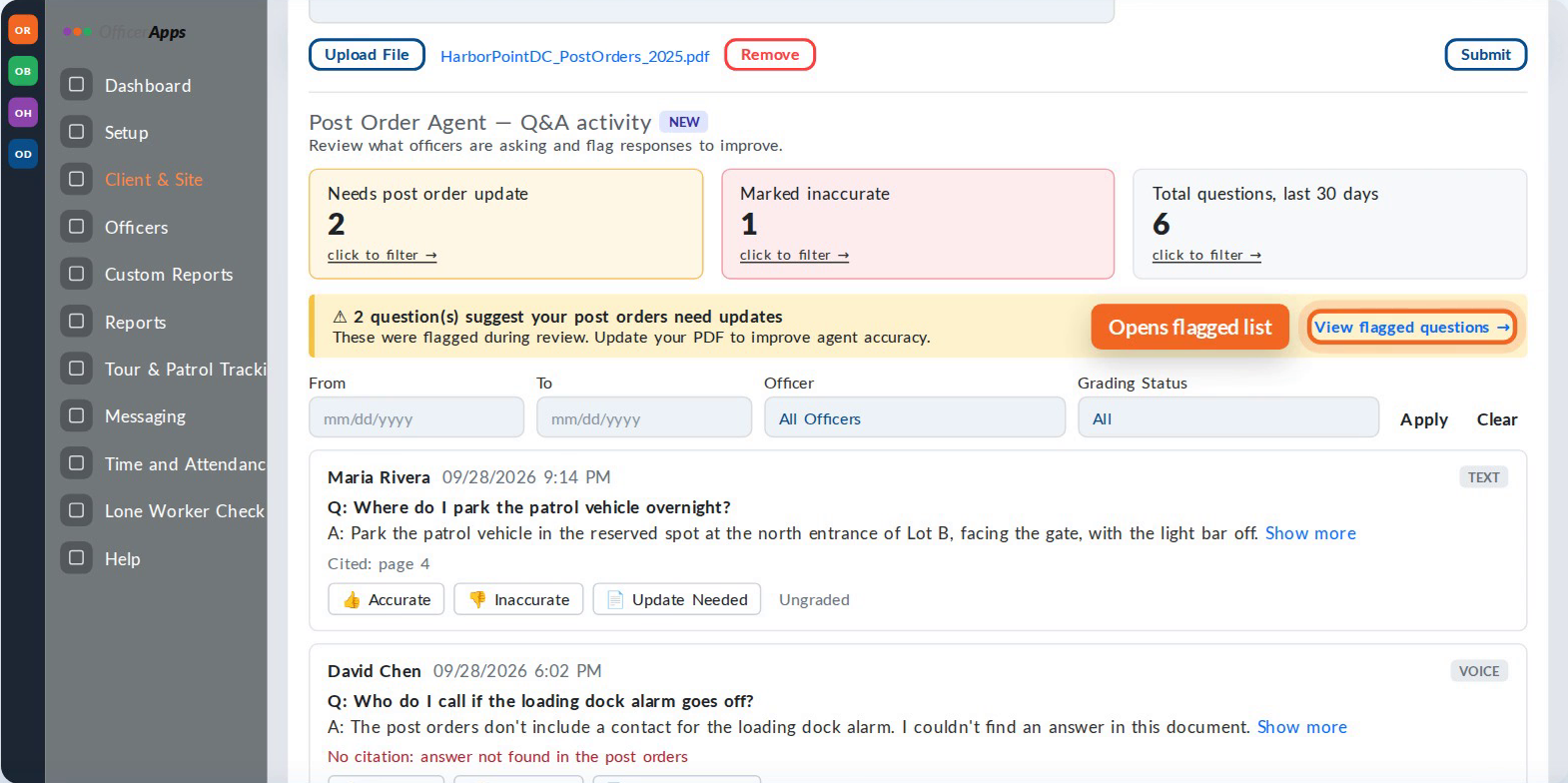
Three tiles at the top show:
- Needs post order update: answers flagged because the PDF needs changes
- Marked inaccurate: answers graded as wrong
- Total questions, last 30 days
Click a tile to show only those questions. When answers are flagged for a PDF update, a yellow banner appears. Click View flagged questions to open that list.
Read an answer
Each entry shows:
- The officer who asked, and the date and time
- Whether the question was typed (TEXT) or spoken (VOICE)
- The question, the agent's answer, and the PDF pages it cited. Click Show more to read a long answer.
If an entry says No citation: answer not found in the post orders, the agent couldn't find an answer. That usually means the PDF is missing the information.
Grade an answer
Grade each answer with one of three buttons:
Button | Use it when |
|---|---|
Accurate | The answer was right. |
Inaccurate | The agent got the answer wrong. |
Update Needed | The answer matched the PDF, but the PDF is missing information or out of date. |
One answer can be both Inaccurate and Update Needed. Each entry shows who graded it last. If two people grade the same answer, the most recent grade counts.
Filter the list
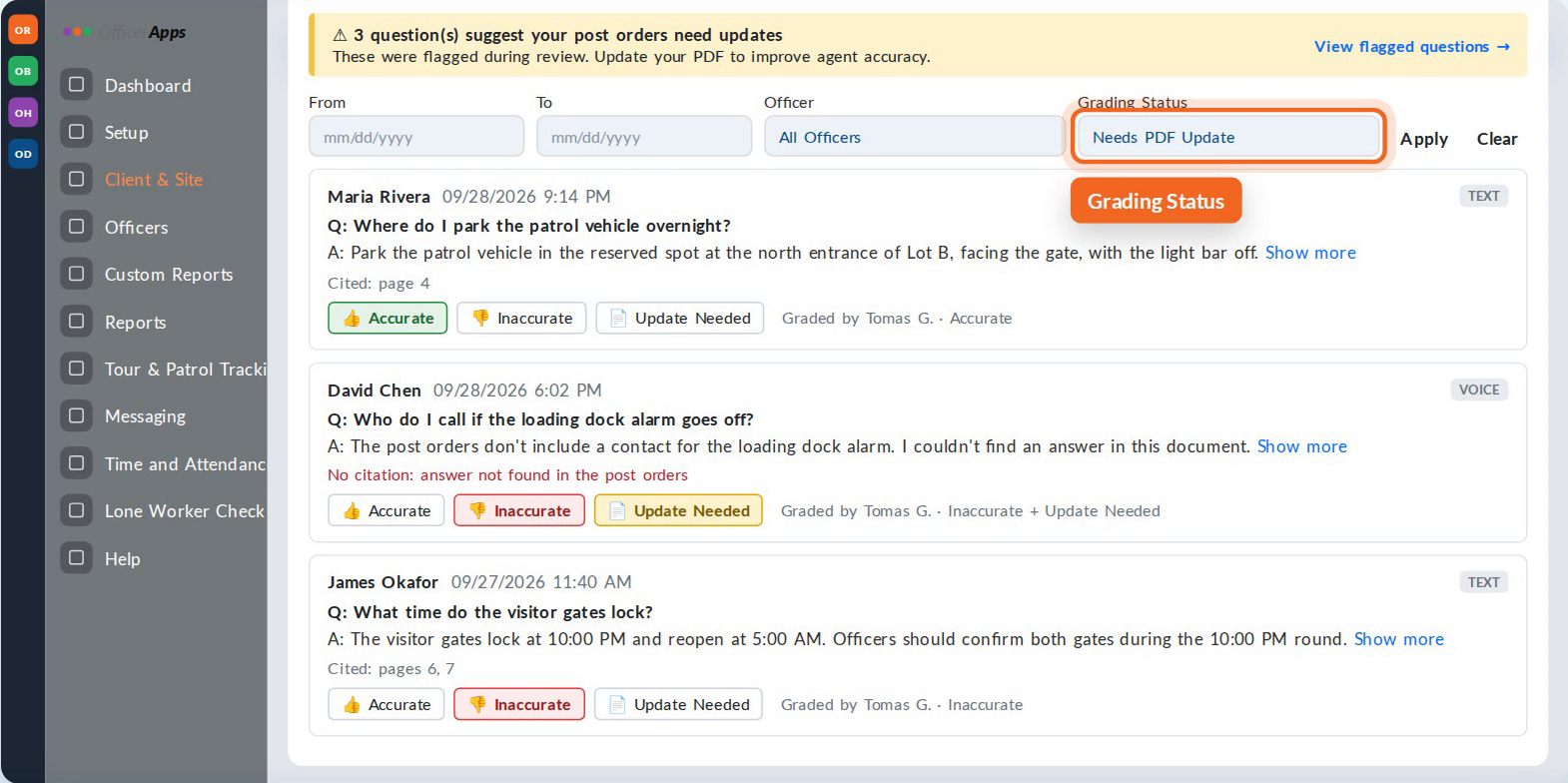
Set From and To dates, an Officer and a Grading Status (for example, Needs PDF Update), then click Apply. Click Clear to reset.
Fix gaps in your post orders
- Filter by Needs PDF Update to see what's missing.
- Update your post order document to cover those questions.
- In the post order form at the top of the Post Orders tab, click Upload File, choose the corrected PDF, and click Submit.
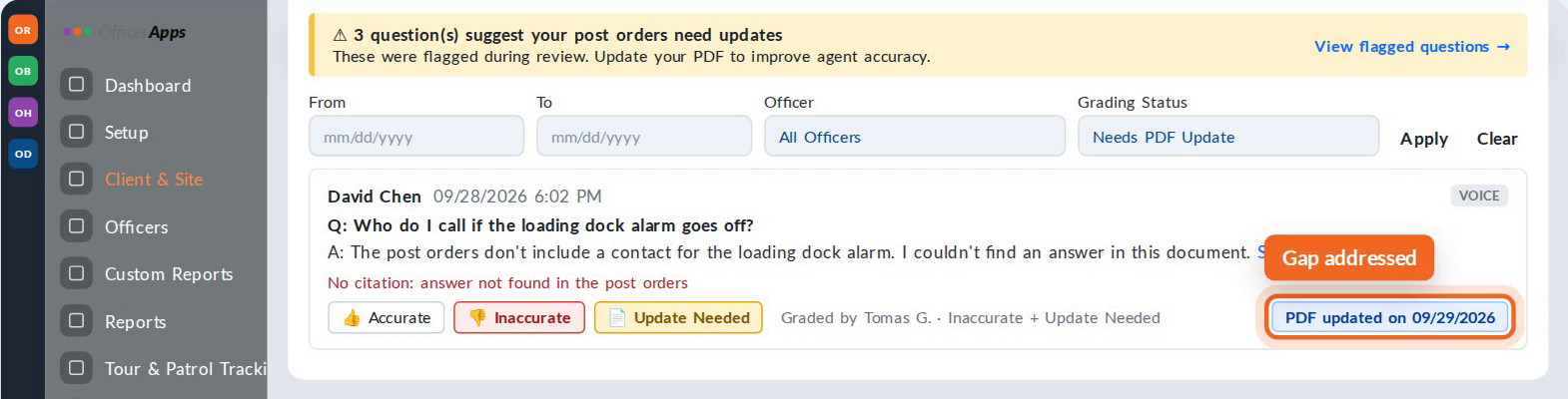
Flagged answers stay flagged after the upload. Each one shows a PDF updated on label with the date, so you can see the gap was addressed.
Troubleshooting
Problem | Why it happens | What to do |
|---|---|---|
I don't see the Q&A section | OfficerIntelligence is off for the site, or you aren't a supervisor or customer admin. | Make sure OfficerIntelligence is on for the site, then check your role. |
Can officers rate the answers? | No. By design, officers ask and supervisors review. | Have a supervisor or customer admin grade the answers. |
The agent said it couldn't find an answer | The post order PDF is missing that information. | Mark Update Needed, then upload a better PDF. |
I uploaded a new PDF. Why are the flags still there? | Flags stay so you have a record. | Look for the PDF updated on label on the flagged answers. |
Two supervisors graded the same answer | The most recent grade counts. | Check who graded it last on the entry. Contact OfficerApps Support for the full grading history. |
➤Still need help? Contact OfficerApps Support.
Was this article helpful?
That’s Great!
Thank you for your feedback
Sorry! We couldn't be helpful
Thank you for your feedback
Feedback sent
We appreciate your effort and will try to fix the article