The Incident Report in the OfficerApps mobile app now captures who was involved and how medical, fire rescue and police responded. These fields were added on September 21, 2026, and appear in the report on the web portal and in the incident report email.
Before you start: update the OfficerApps app from the App Store or Google Play. Older app versions don't show the new fields.
What's new
Section | Group | New fields |
|---|---|---|
Overview | Persons Involved | Persons Involved, Persons Involved Contact Info |
Responder Info | Medical Treatment | Medical treatment provided (Yes/No), Type, By Whom, Address, Phone |
Responder Info | Fire Rescue | Fire rescue notified (Yes/No), By Whom, Time Contacted, Time Responded, F/R Report #, Transported (Yes/No), Where To, Fire Truck Number, Ambulance Number |
Responder Info | Police | By Whom, Time Contacted, Time Responded, PD Case # |
Fill in Persons Involved
- In the app, open a new Incident Report.
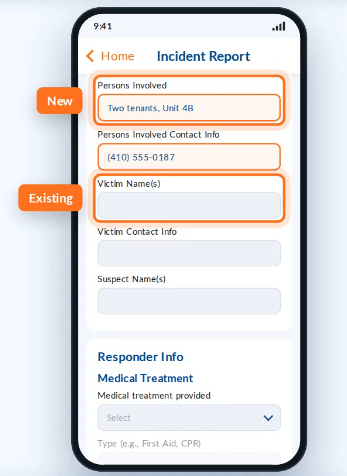
- In Overview, find Persons Involved and Persons Involved Contact Info, right above Victim Name(s).
- Enter the names and contact details of anyone involved who isn't a victim, suspect or witness.
Both fields are optional and always available.
Record medical treatment
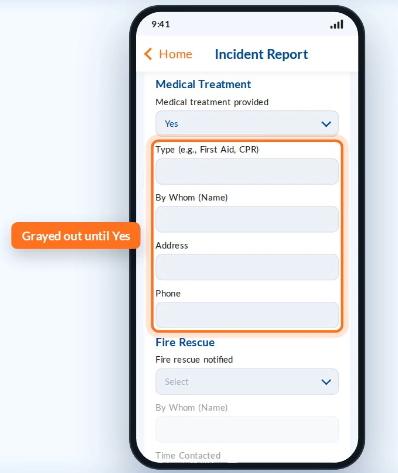
- In Responder Info, set Medical treatment provided to Yes.
- Fill in any of the details that open up: Type (for example, First Aid or CPR), By Whom, Address and Phone.
All detail fields are optional. If you leave the answer at No, the details stay grayed out.
Record fire rescue
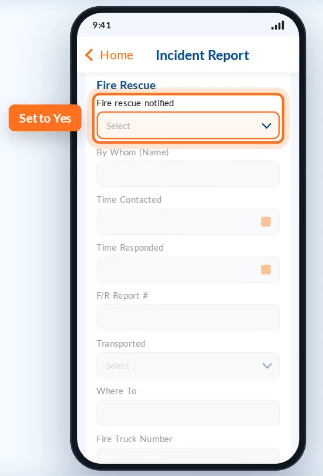
- Set Fire rescue notified to Yes.
- Add By Whom, Time Contacted, Time Responded and the F/R Report #.
- If someone was taken to a hospital or other location, set Transported to Yes and enter the destination in Where To.
- Add the Fire Truck Number and Ambulance Number if you have them.
Record police response
Police Called is still required on every Incident Report.
- No: explain why in If Not, Why?
- Yes: fill in By Whom, Time Contacted, Time Responded and the PD Case #.
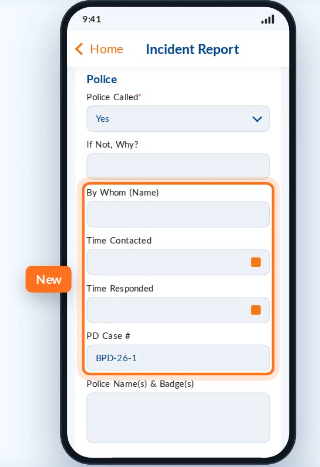
Police Name(s) & Badge(s) stays in the Police group, as before.
Tip: If you set a group back to No before submitting, the details you typed in that group are not submitted. Check that each group you filled in is still set to Yes before you tap Submit.
View the new fields on the web
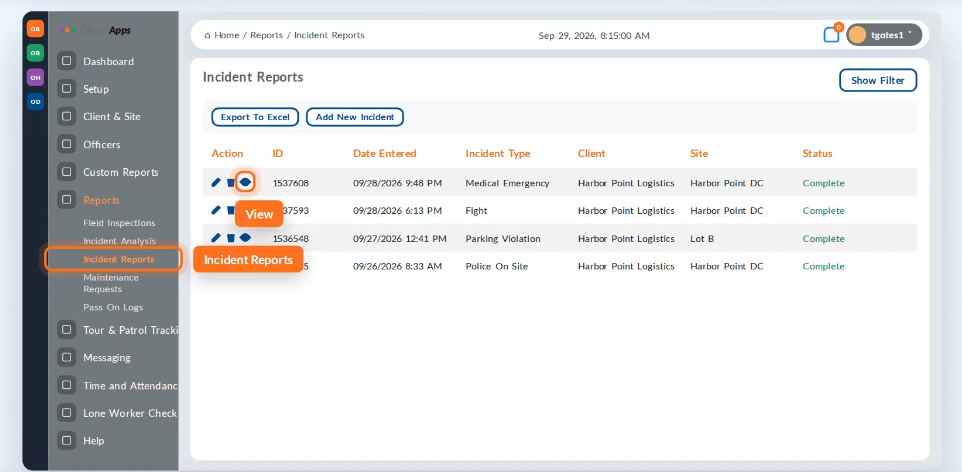
- In the web portal, go to Reports > Incident Reports.
- Click the eye icon next to a report.
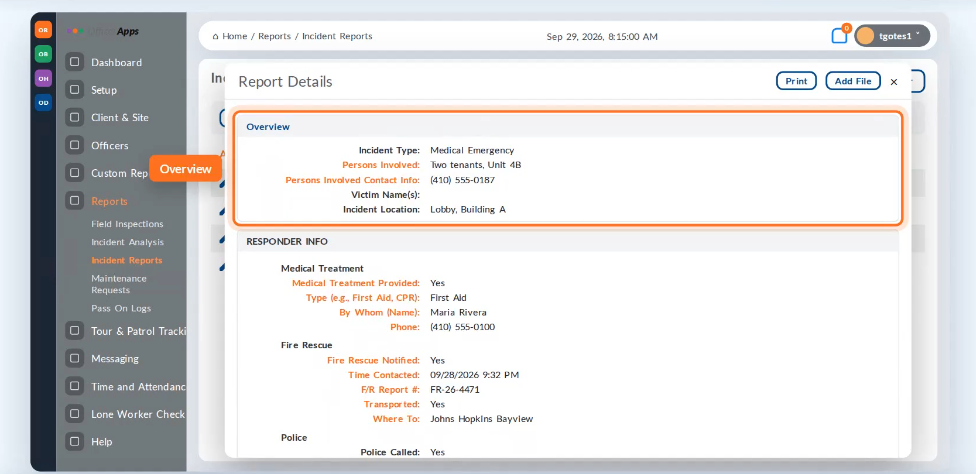
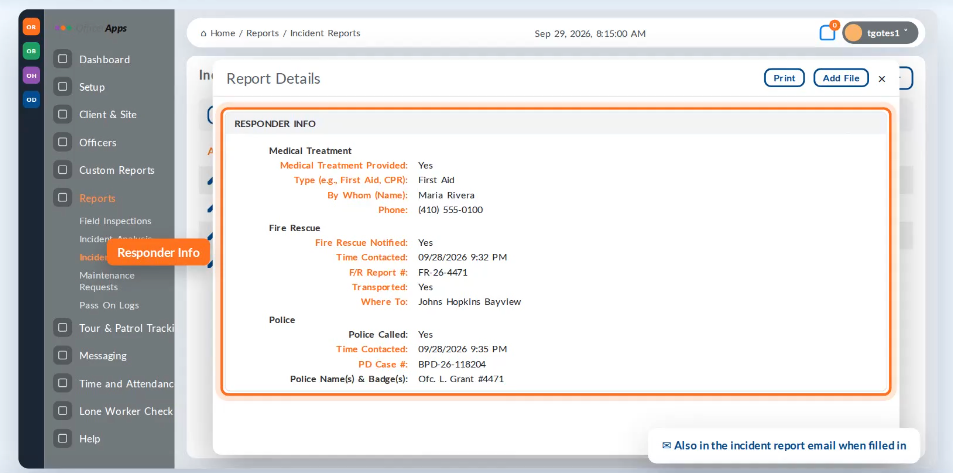
- In Report Details, the Persons Involved fields appear under Overview. Medical Treatment, Fire Rescue and Police appear under Responder Info.
When these fields are filled in, they're also included in the incident report email. On the web, these fields can be viewed but not edited yet. Editing on the web is planned for a later release.
Troubleshooting
Problem | Why it happens | What to do |
|---|---|---|
The new fields are grayed out | That group's Yes/No question isn't set to Yes. | Set Medical treatment provided, Fire rescue notified or Police Called to Yes. |
I filled in details, but they're missing from the report | The group was switched back to No before submitting. | Make sure the group is set to Yes before you submit. |
I don't see the new fields in the app | The app is out of date. | Update OfficerApps from the App Store or Google Play. |
I can't edit these fields on the website | The web portal shows them view-only for now. | Make changes in the app before submitting. Web editing is coming in a later release. |
Older reports show these fields empty | Those reports were submitted before this release. | Nothing to fix. This is expected. |
➤ Still need help? Contact OfficerApps Support.
Was this article helpful?
That’s Great!
Thank you for your feedback
Sorry! We couldn't be helpful
Thank you for your feedback
Feedback sent
We appreciate your effort and will try to fix the article