This guide walks through setting up your OfficerApps MCP connector in Claude, enabling AI-powered access to your OfficerApps data directly within the Claude chat interface.
Before you begin: You'll need a Client Key and Client Secret from your OfficerApps account manager. Contact Customer Success to request your credentials if you haven't received them yet. Connect is only availble to Enterprise customers.
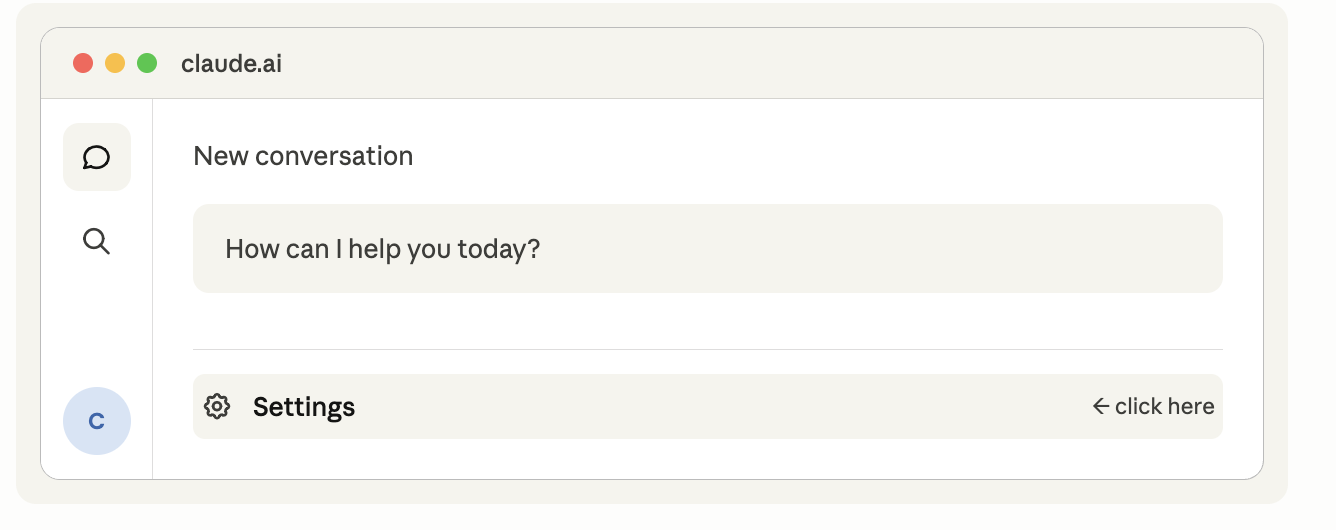
Open Claude settings
In Claude.ai, click your profile icon in the lower-left corner of the sidebar, then select Settings from the menu.
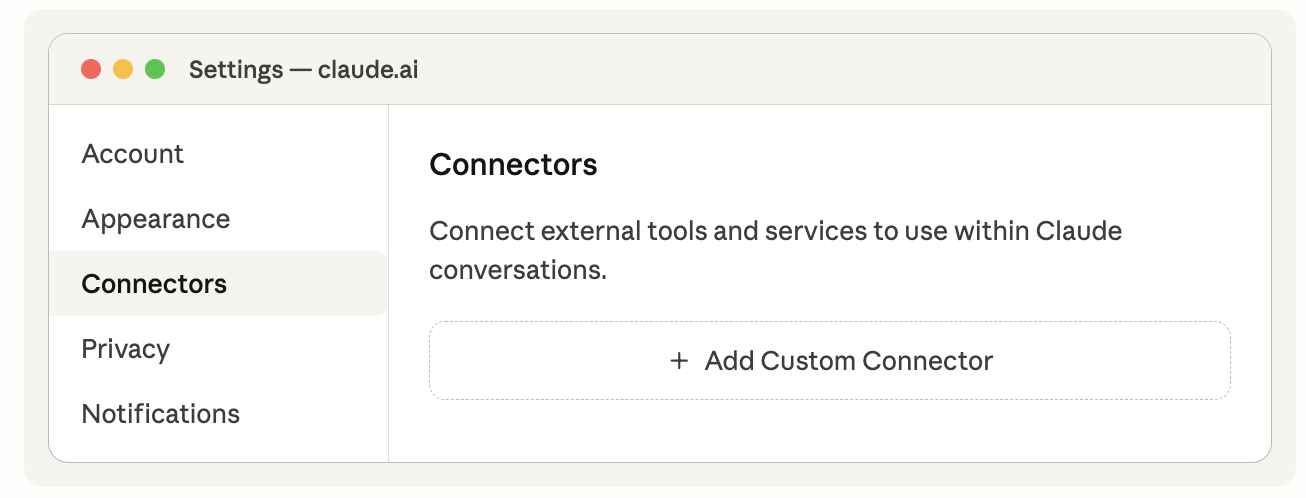
Navigate to Connectors
In the Settings panel, select Connectors from the left navigation menu.
Add a custom connector
Click Add Custom Connector. In the dialog that appears, enter a name (e.g.
OfficerApps) and set the URL tomcp.officerapps.net/mcp, then click Add.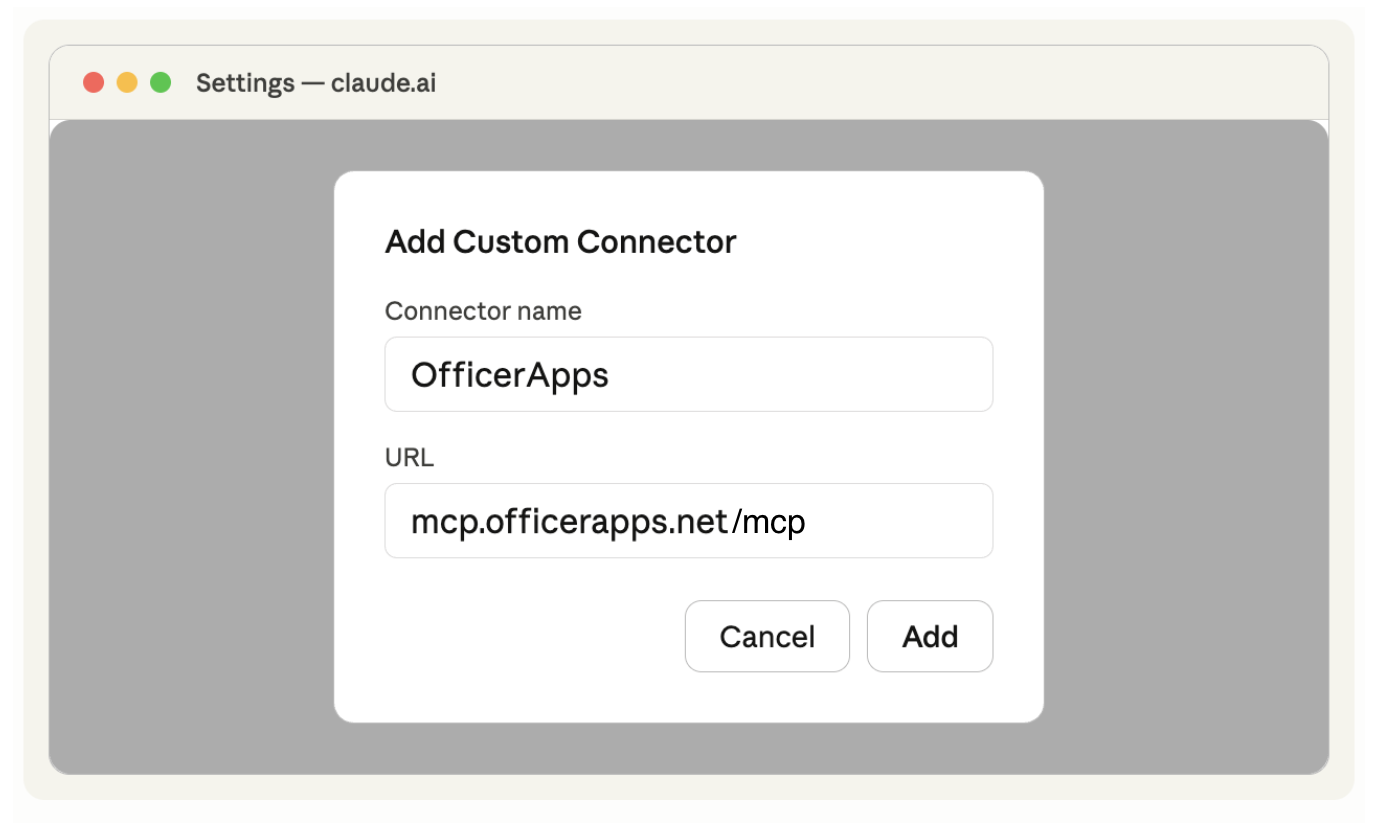
Connect the OfficerApps connector
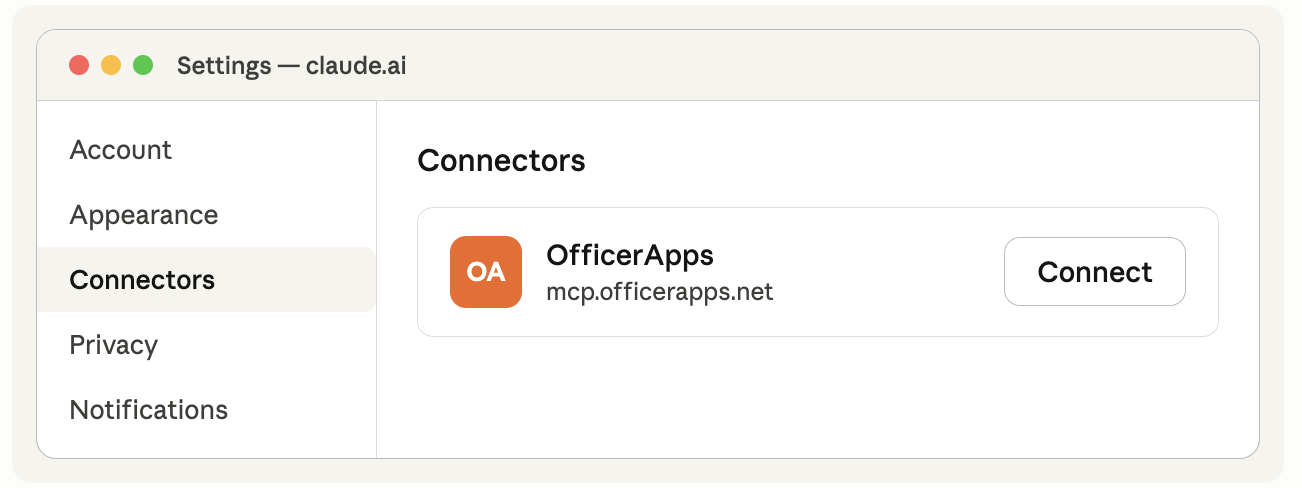
The OfficerApps connector will now appear in your Connectors list with a Connect button. Click Connect to begin authentication.
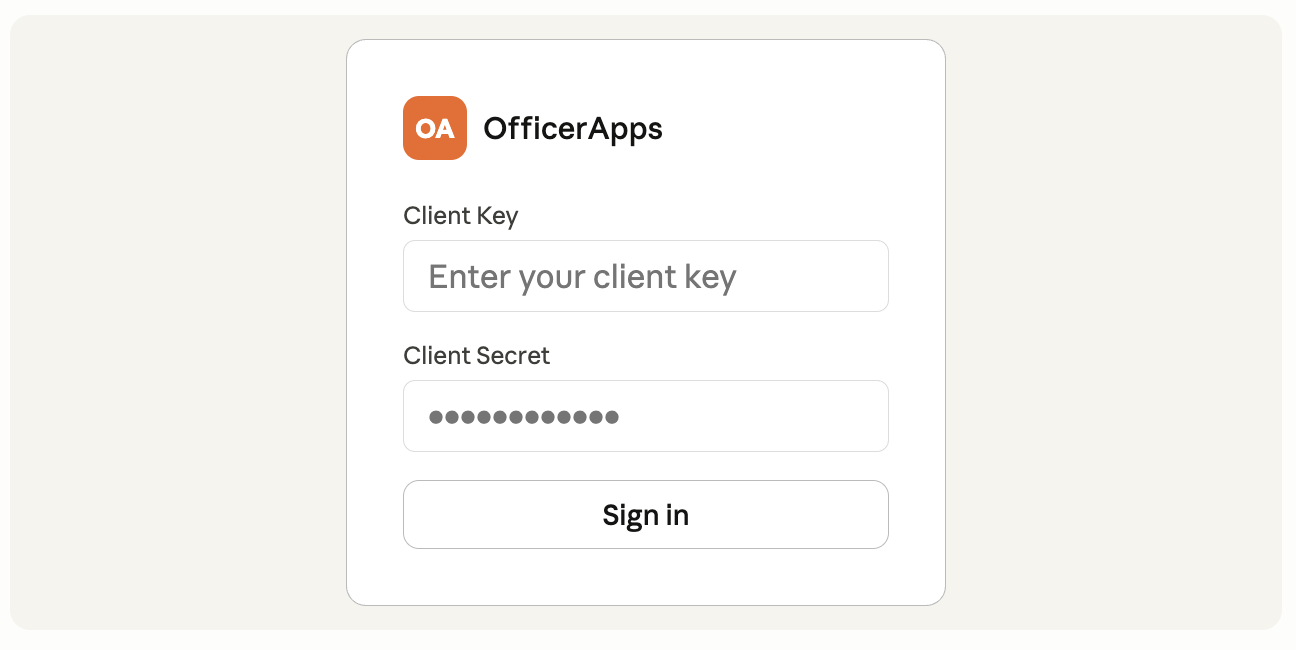
Sign in with your Client Key and Secret
A login page will open. Enter your Client Key in the username field and your Client Secret in the password field, then click Sign in.
Wait for the connection to complete
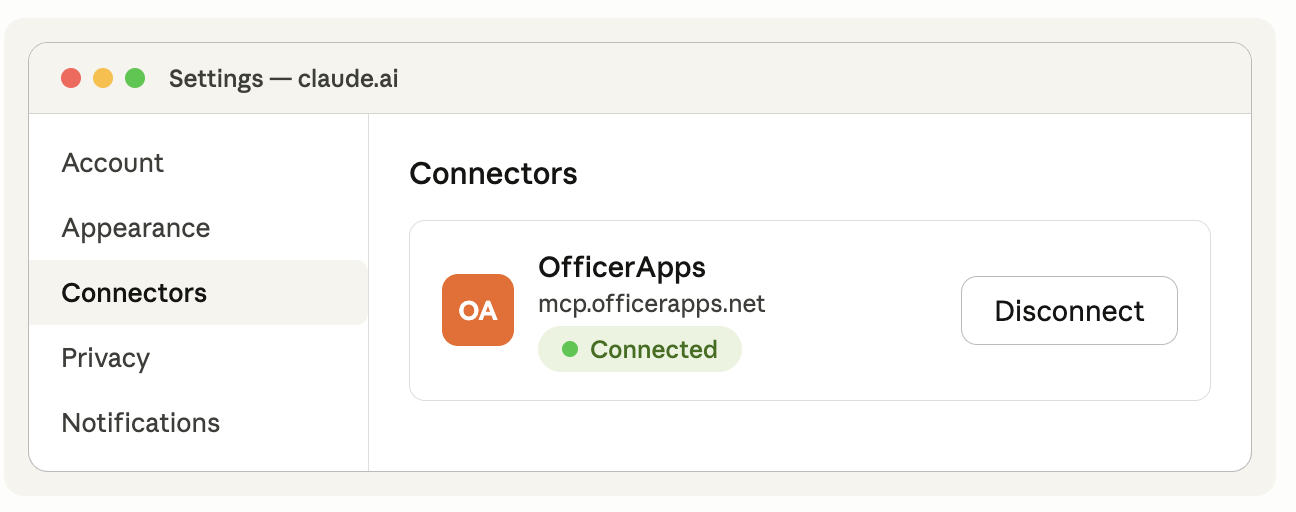
After signing in, Claude may take a few moments to establish the connection. Once complete, the connector status will update to Connected and you're ready to use OfficerApps tools in your conversations.
Troubleshooting
- If the connection page doesn't appear, check that you entered the URL as
mcp.officerapps.net(nohttps://prefix needed). - If login fails, confirm your Client Key and Client Secret with your OfficerApps account manager — credentials are case-sensitive.
- If the connector shows as connected but tools aren't appearing, try disconnecting and reconnecting, then refresh your Claude session.
- Need credentials? Contact your OfficerApps account manager or email support@officerapps.com.
Was this article helpful?
That’s Great!
Thank you for your feedback
Sorry! We couldn't be helpful
Thank you for your feedback
Feedback sent
We appreciate your effort and will try to fix the article