 In the security guard industry, security officers provide your clients with an overwhelming amount of information. Here at OfficerApps, we want to help you streamline that information for your customers. That is why we have created OfficerIntelligence, our AI-powered suite of features. We use OfficerIntelligence's AI-powered Daily Security Brief to summarize and transform overwhelming amounts of information into clear, actionable intelligence. Daily Security Brief (DSB) will help save time, improve oversight, and enhance client communication. It enables security companies to operate leaner, smarter, and more profitably.
Set Up
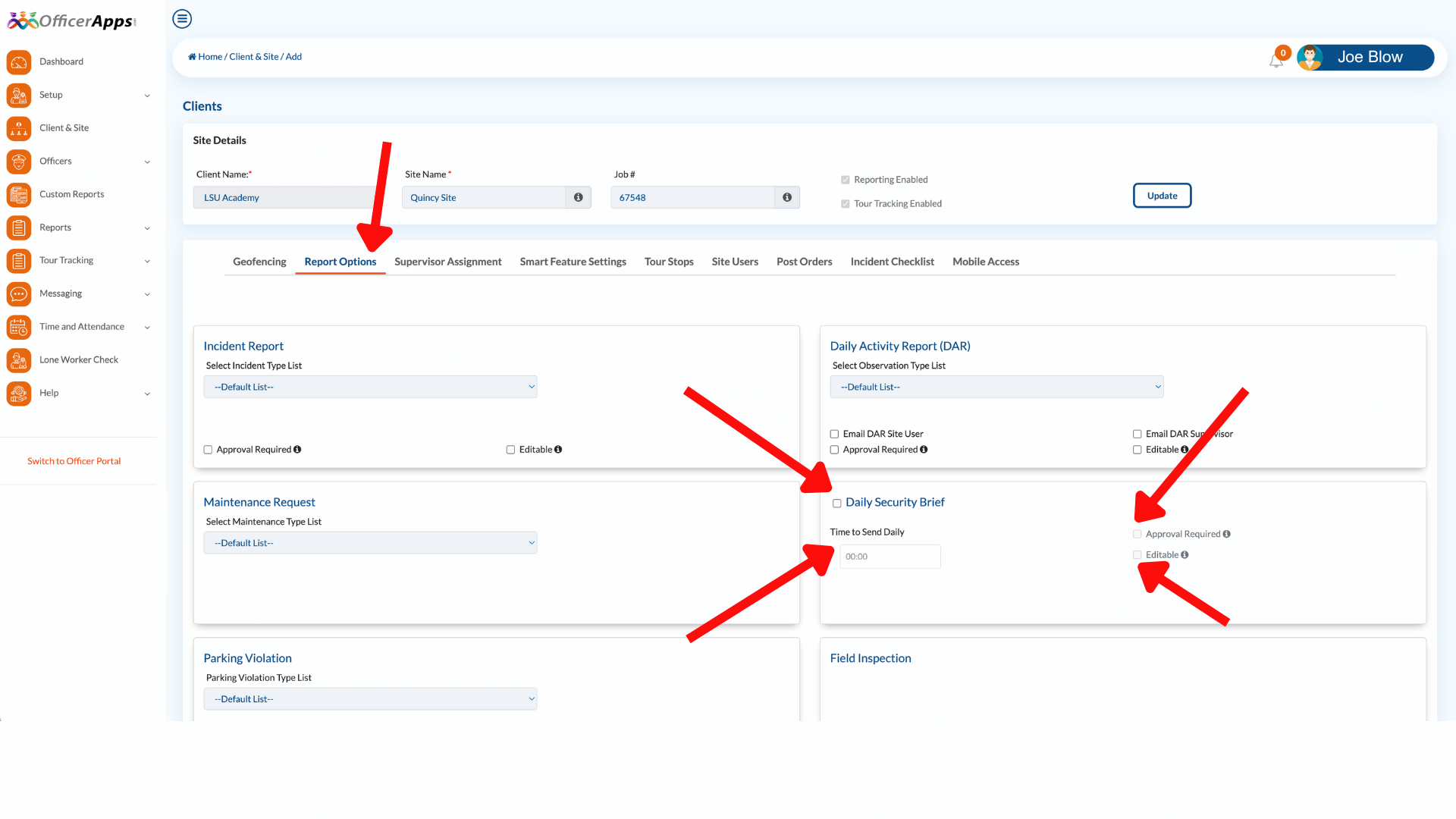
To set up the Daily Security Brief (DSB):
- Go to the site that you would like to activate DSB for.
- Go the the Report Options tab.
- Check the box indicating that you would like to turn on the DSB.
- Accept the terms for using OfficerIntelligence.
- Set the time that you would like to generate the DSB. (Note that it may take several minutes for the DSB to generate and be delivered. For example, if you choose 8am the report might not generate until 8:03am)
- If you would like the DSB to be approved prior to being sent to your client check the Approval Required box.
- If you would like the ability to edit the DSB, click the Editable box.
Reviewing
To review the DSB created by OfficerIntelligence:
- Go to Reports
- Click on the Daily Security Brief Option.
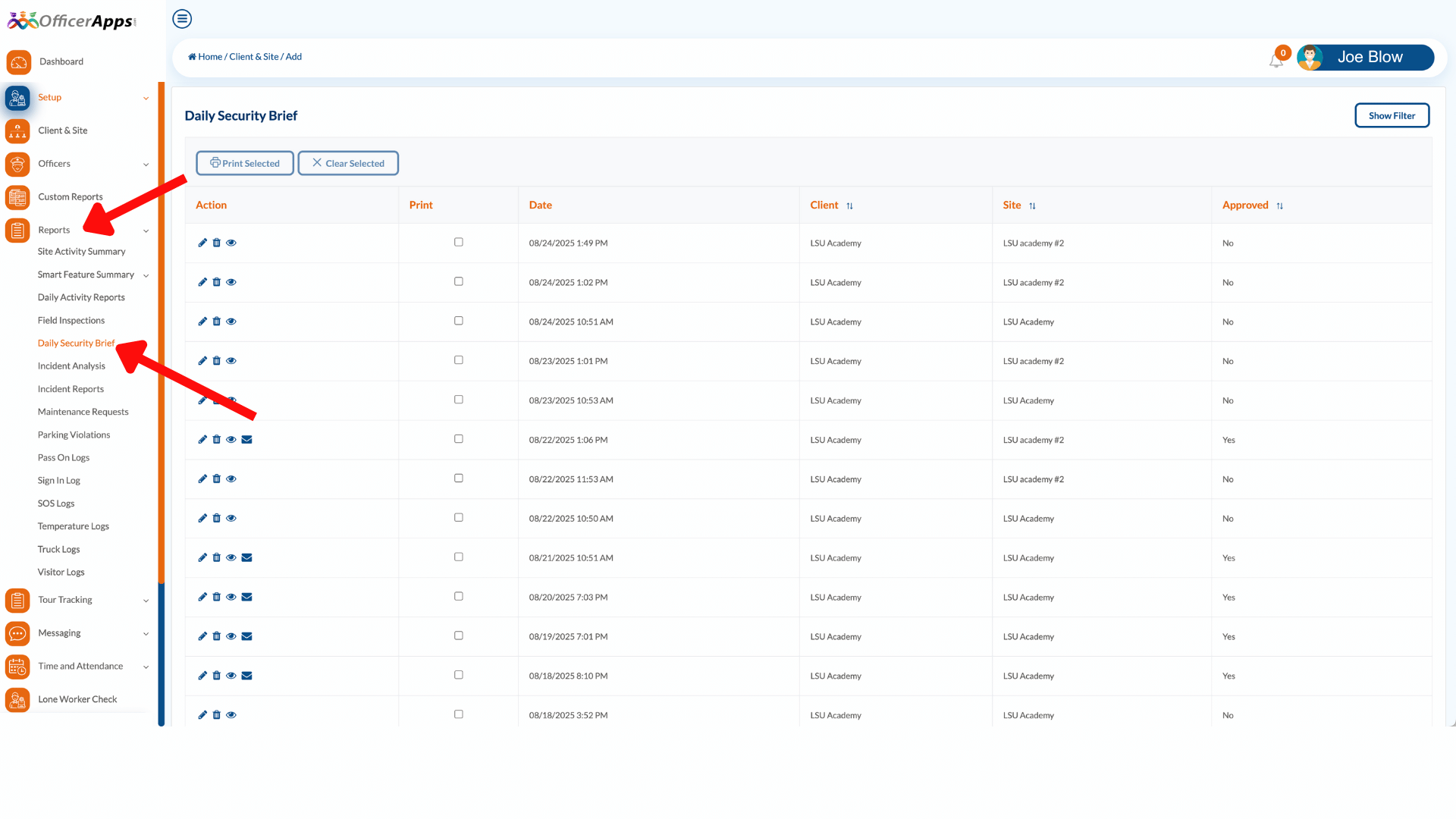 On the DSB page, you can choose one of three options for the DSB:
- Edit - You can edit the report to include or exclude any information in the report. (Note: We do not track versions of the report, so changes are permanent.)
- Delete - You can delete any report. This deletion is permanent.
- View - View the report and Approve the report for emailing.
- Email - Email the report to your designated Site User.

Heatmap Image Display in the Daily Security Brief
Known Issue: Heatmap Not Displaying in Gmail
Some customers may notice that the heatmap image in their Daily Security Brief email does not display when viewed in Gmail (web or mobile). This is a known limitation with Gmail and is not an issue with OfficerReports.
Gmail does not support images embedded using Base64 encoding, which is a method of including images directly within an email without hosting them on an external server. Google has chosen not to support this format in their web and mobile Gmail clients.
Who Is Affected?
This issue affects customers who view their Daily Security Brief using:
- Gmail web browser
- Gmail mobile app (iOS or Android)
Customers viewing the DSB through the Gmail desktop app, Apple Mail, Outlook, or other email clients should see the heatmap display correctly.
We're Working on It
Our team is actively working on a solution to ensure the heatmap displays correctly across all email clients, including Gmail. The fix involves updating how heatmap images are delivered in the email so they are fully compatible with Gmail's requirements.
We appreciate your patience while we implement this improvement.
In the Meantime
If you need to view the heatmap, we recommend:
- Opening your Daily Security Brief on a non-Gmail email client such as Apple Mail or Outlook
- Logging into the OfficerReports web portal directly to view your security data and reports
If you have questions or need assistance, please contact our support team.
Was this article helpful?
That’s Great!
Thank you for your feedback
Sorry! We couldn't be helpful
Thank you for your feedback
Feedback sent
We appreciate your effort and will try to fix the article