OfficerApps allows you to bulk upload both officers and sites, helping you save time when managing large amounts of data.
Bulk Upload Officers
Steps:
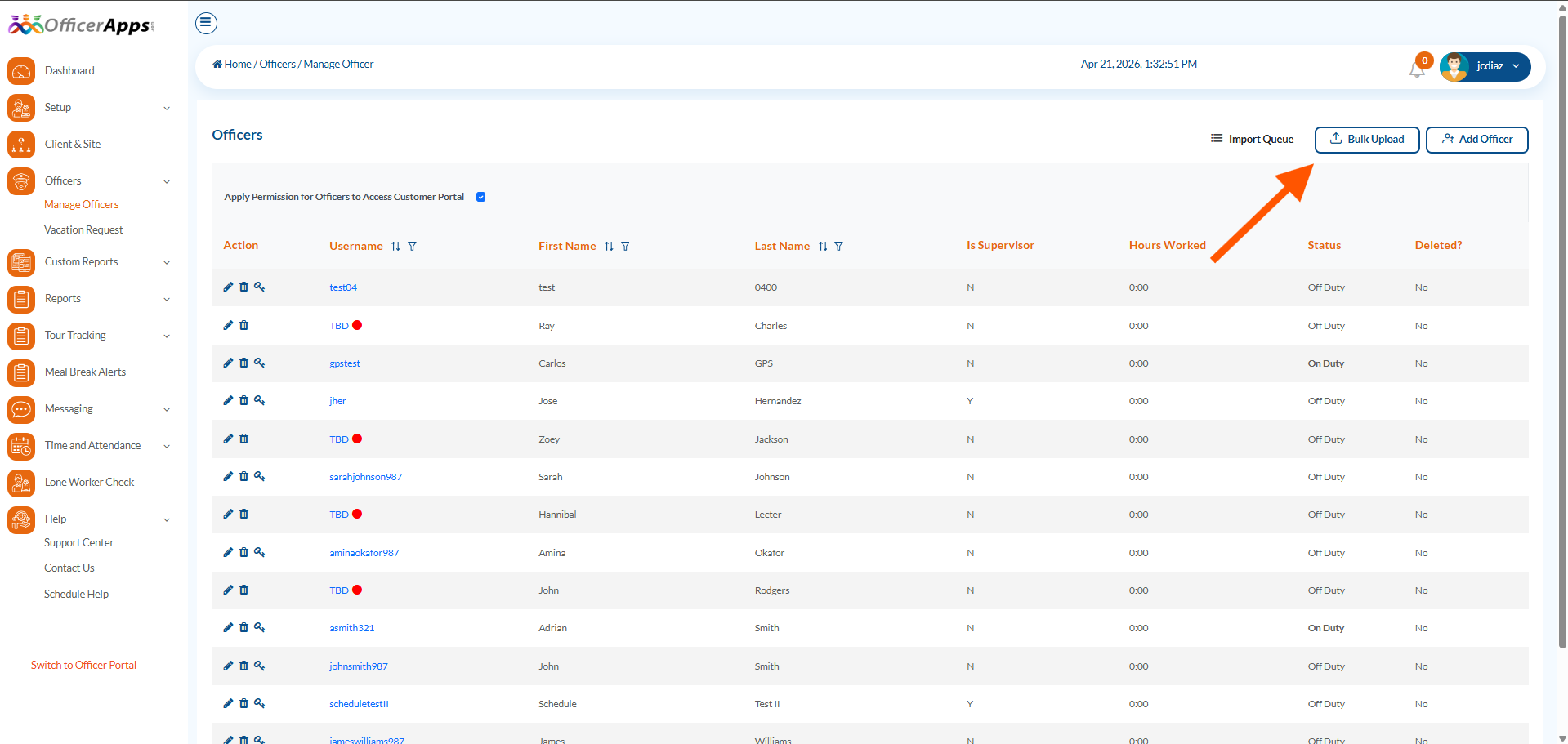
- Go to Officers > Manage Officers
- Click the Bulk Upload button
Template:
- Download the provided template to ensure your data is formatted correctly before uploading.
- Make sure the file is saved as a .CSV.
Optional Fields:
The following fields are not required and can be left blank if the information is unavailable:
- Address1
- Address2
- City
- State
- Country
- Postal Code
Best Practices:
- If your account uses branches, create separate CSV files for each branch.
- During the upload process, you will be asked to select a branch.
- Uploading multiple branches in one file may require manual reassignment afterward.
Track Upload Status:
- Click the Import Queue button to view the status of your upload.
Bulk Upload Sites
Steps:
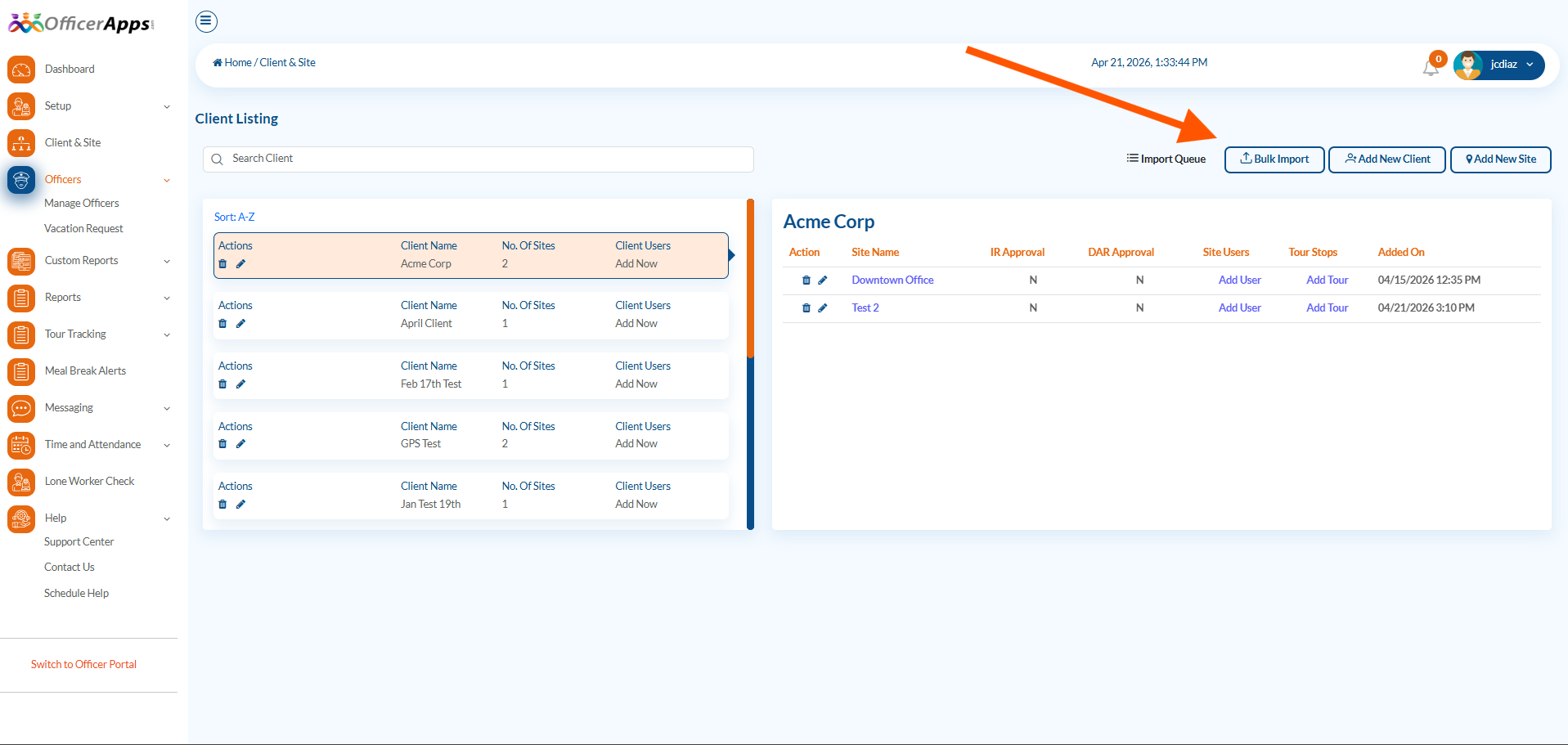
- Go to Clients & Sites
- Click the Bulk Import button
Template:
- Download the template to ensure your file is properly formatted.
- Save the file as a .CSV before uploading.
Field Requirements:
- All fields are mandatory when uploading sites.
Was this article helpful?
That’s Great!
Thank you for your feedback
Sorry! We couldn't be helpful
Thank you for your feedback
Feedback sent
We appreciate your effort and will try to fix the article